Take a closer look at the ITAM360 asset manager, from everyday equipment records to the people, places and dates connected to them.
Actual product screenshots from the fictional Friday example workspace. Each section explains what to look for. Select any screenshot for a larger view, then use Zoom in to read the detail.
01
Find and record
Find equipment in your asset register
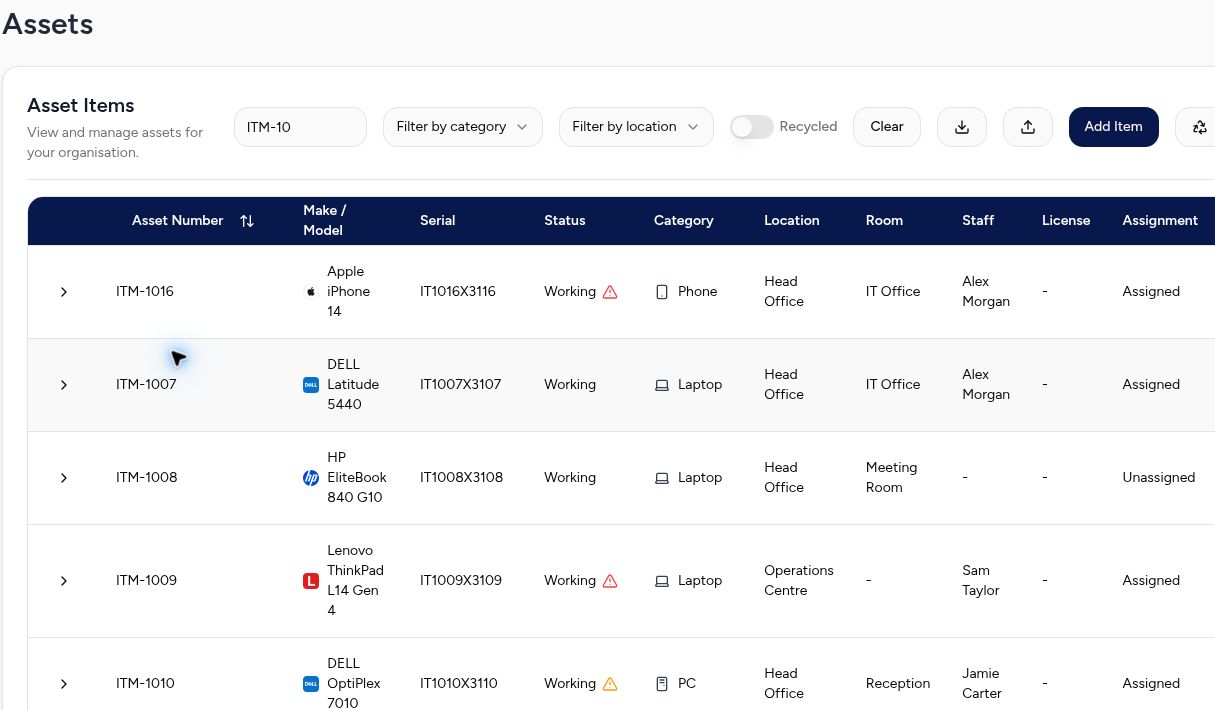
Search your equipment records and filter by category or location. This example is filtered to ITM-10 and shows asset numbers, models, serials, status and allocation.
What to look for
Find an item by asset number, then filter by category or location.
Read across a row to see its serial number, status, room and assigned person.
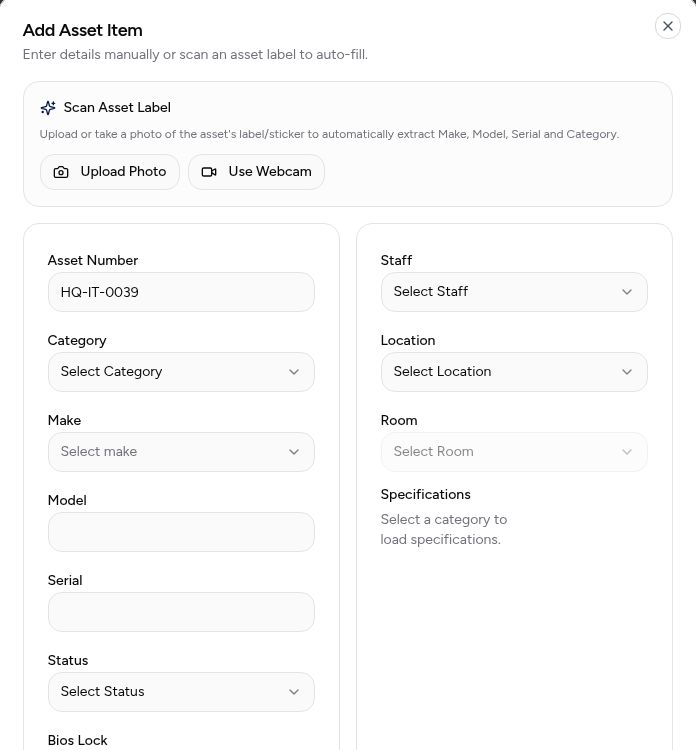
Enter details manually, or use the Add Asset Item screen’s upload-photo and webcam options to help fill in make, model, serial and category. Review the record before saving.
What to look for
Upload a photo or use a webcam to read an asset label.
Review the details, then choose the staff member, location and room.
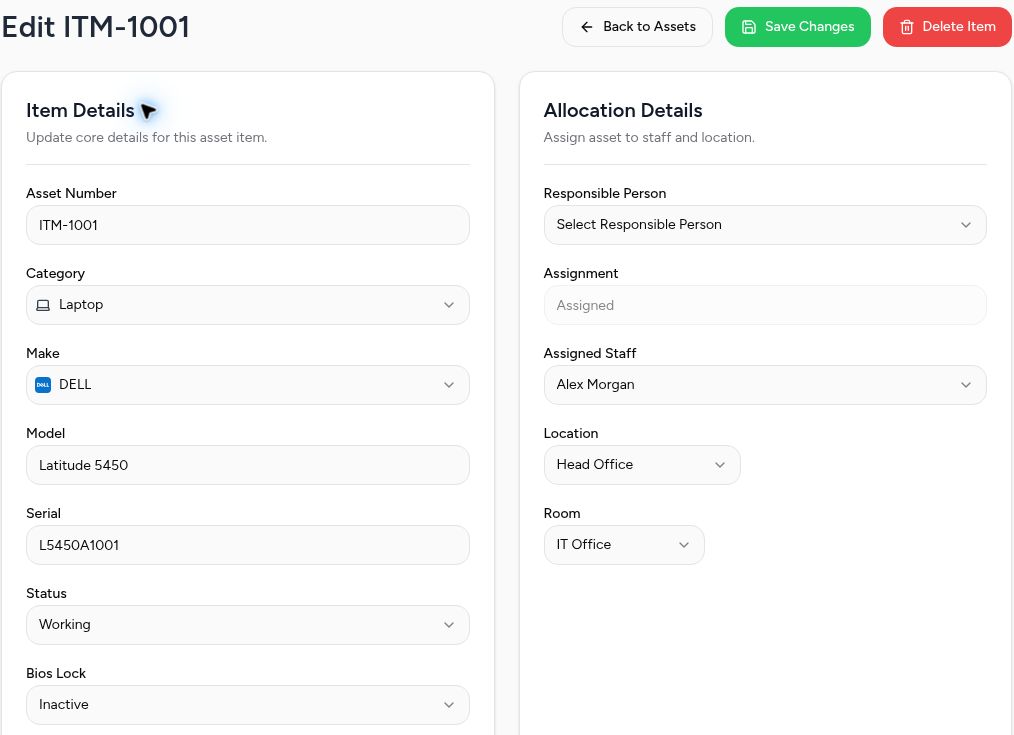
Keep the asset’s identity together with its assigned staff member, business location and room. This example shows the fictional ITM-1001 laptop record.
What to look for
Item Details identifies the laptop by asset number, make, model and serial.
Allocation Details shows Alex Morgan at Head Office, in the IT Office.
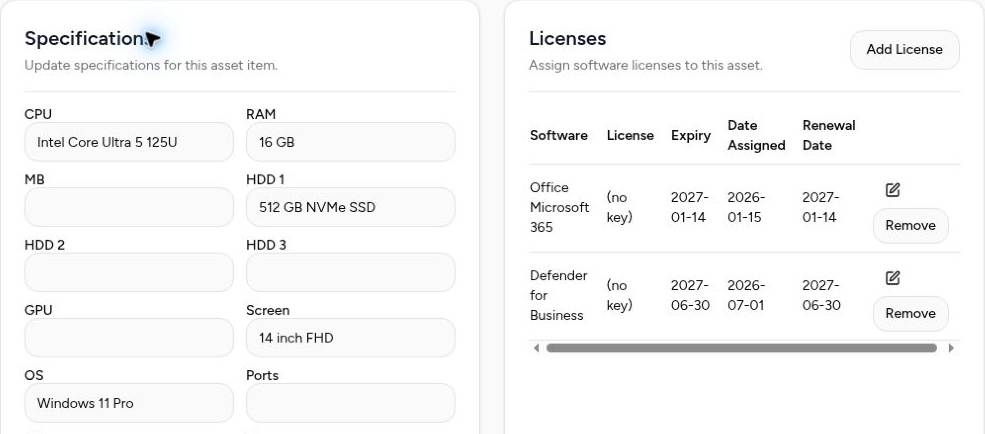
Keep recorded processor, memory, storage, screen and operating-system details alongside the asset. The example also shows its linked software licences.
What to look for
The left panel records CPU, memory, storage, screen and operating system.
The right panel lists software linked to this asset, with expiry and renewal dates.
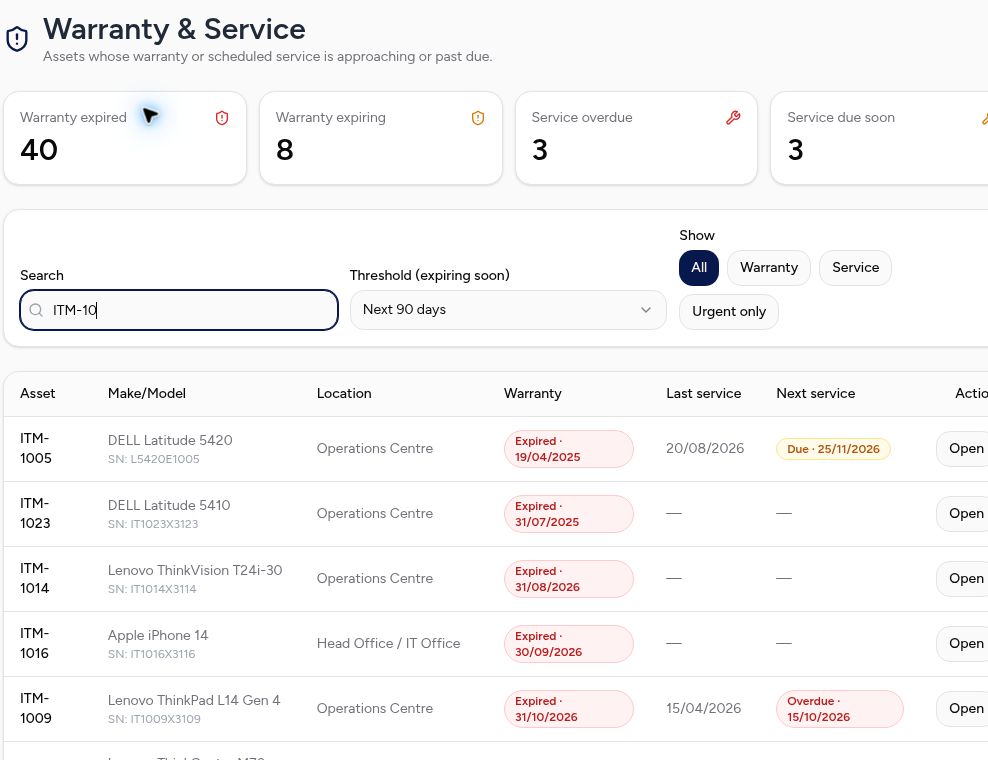
See recorded expiry and service dates, with filters for warranty, service and urgency. The example list is filtered to ITM-10; the summary counters cover the wider workspace.
What to look for
Summary cards show warranty and service totals for the wider workspace.
The filtered table below shows individual assets and their recorded dates.
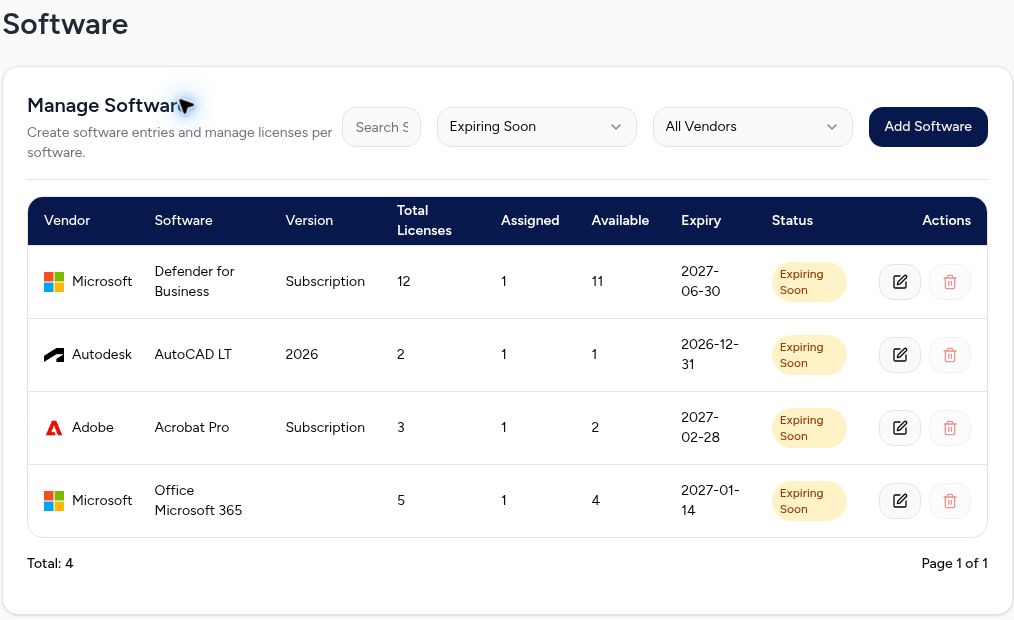
Review software entries, total seats, assigned and available counts, expiry and status. This example shows four populated entries under the Expiring Soon filter.
What to look for
Compare Total Licenses, Assigned and Available to see remaining seats.
Expiry and Status help you review the four entries shown in this filtered view.

 View larger screenshot ↗